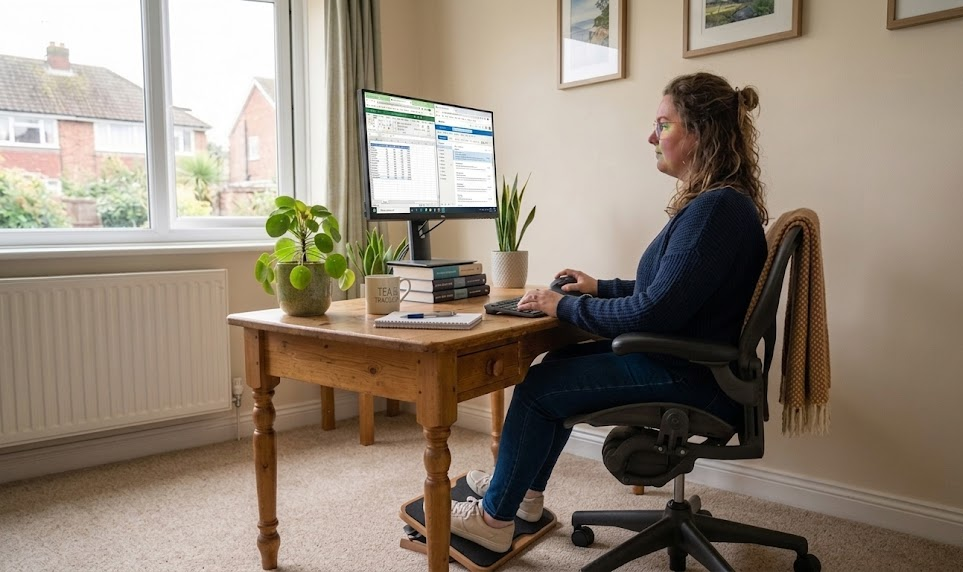
Many people in the UK now work from home, often using laptops on kitchen tables or sofas. By lunchtime, this lack of proper setup usually leads to a dull ache between the shoulders or sharp wrist pain.
A 2024 Health and Safety Executive report found that 511,000 workers had work-related musculoskeletal disorders, resulting in 7.1 million working days lost. On average, each affected person lost about 14 days of work.
While remote work offers flexibility, ignoring physical comfort quickly causes stiff necks, persistent fatigue, and difficulty concentrating. Fortunately, protecting your body doesn’t require an expensive overhaul. A few simple adjustments can make a big difference to your daily comfort.
At Worklife Expo, we empower professionals and organisations to navigate the evolving landscape of modern work through actionable insights and smart cultural strategies.
Practical Steps to Implement Ergonomic Practices
Here are the five practical steps to safeguard your remote employees’ health:
Step 1: Set Your Screen to Eye Level
Look straight ahead. Position the top of your screen at or just below eye level. When a laptop sits flat on a desk, your neck tilts forward to see it, which strains the muscles holding your head up.
According to Houseloo, home office setups and neck and shoulder pain affect 50% and 72% of people working from home. Sitting with laptops on low surfaces often leads to forward head posture, a common problem.
Raise the laptop using a stand or a stack of books. Use a distinct keyboard and mouse so your hands stay low while the screen is high. This keeps your neck in a neutral position and reduces tension.
Step 2: Follow the 90 Degree Rule
Sit back in your chair. Make sure your elbows, hips, and knees are all at 90 degrees, with your feet flat on the floor.
If your feet do not reach the floor, place a footrest or a sturdy box under them. Keep your forearms parallel to the desk. This position helps distribute your weight evenly and prevents one joint from bearing too much strain.
Step 3: Support Your Lower Back
The lower back curves inward. A flat chair back does not support this curve, causing the spine to slump into a C shape over time. This slump leads to the discomfort people feel at the end of the day.
To help, place a small cushion or a rolled towel in the gap between your lower back and the chair. This offers gentle support while maintaining the natural curve. Sitting upright should feel easy, not like a struggle.
For a clear visual guide, check out this resource that illustrates how to align your back while seated and includes stretches to relieve pain.
Step 4: Swap the Trackpad for Peripherals
A laptop trackpad can make your wrist move in tight, repetitive ways. Over time, this can irritate your tendons, causing discomfort and a weaker grip.
To avoid this, use a separate mouse and keyboard. Keep them close so you don’t have to reach forward. This helps your shoulders relax, keeps your wrists straight, and even reduces daily strain.
Step 5: Build Movement Into the Day
Stillness can be a problem. Even a perfect setup can cause stiffness if you stay for too long. Your body needs to move.
Get up, stretch, and walk for a few minutes every half hour. Use a timer if that helps. A quick walk around the kitchen can reset your posture and give your eyes a break from the screen.
For a clearer routine to follow, take a look at this guide on exercises for office workers that you can do between tasks.
| Screen Distance: An arm’s length away, about 50 to 70cm from your eyesScreen Height: Top of the screen at or just below eye levelDesk Height: Around 70 to 72cm for most adults, so elbows rest at 90 degreesChair Height: Feet flat on the floor, thighs parallel to the groundMovement Breaks: Stand and stretch every 30 minutes |
Why Ergonomic Safeguards Matters for Employers
Healthy staff show up and stay focused. Providing ergonomic support helps reduce tiny absences caused by uncomfortable aches that distract them during the day. When staff feel physically comfortable, they can maintain their energy longer, which helps prevent burnout.
Supporting health for remote workers also encourages retention. Employees are more likely to stay with employers who care about their well-being. Spending a little on a chair cushion or a laptop stand is small compared to the cost of losing 14 workdays for each affected worker.
Conclusion
Taking care of physical health is important for keeping remote employees productive and comfortable. By implementing these five ergonomic practices, you can boost your team’s well-being and performance each day.
This week, make one small change to see quick benefits. A good working environment helps your team stay focused and consistent, and it boosts long-term morale.To improve the well-being of your remote teams, contact us at Worklife Expo.